
Setup Guide
KidTube Lock needs two one-time changes in your phone's settings: the Appear on top permission and the KidTube Lock Guardian accessibility option. Together they take about a minute, and you only have to do this once.
The screenshots below are from a Samsung phone. On other Android phones the menus look a little different, but the names are the same or very close.
Part 1 of 2
Allow "Appear on top"
This lets KidTube Lock keep its lock layer above YouTube, so stray taps can't wander off into other apps.
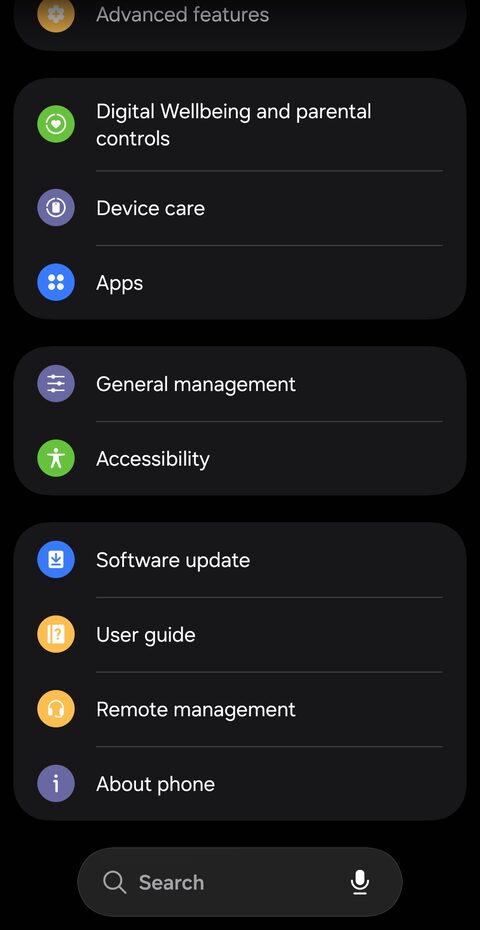
Open your phone's Settings and tap Apps.
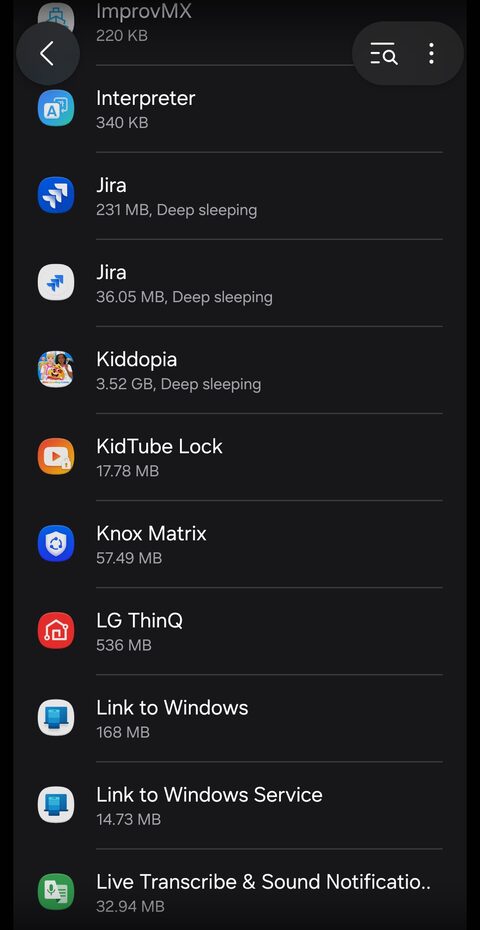
Scroll to KidTube Lock in the app list and tap it.
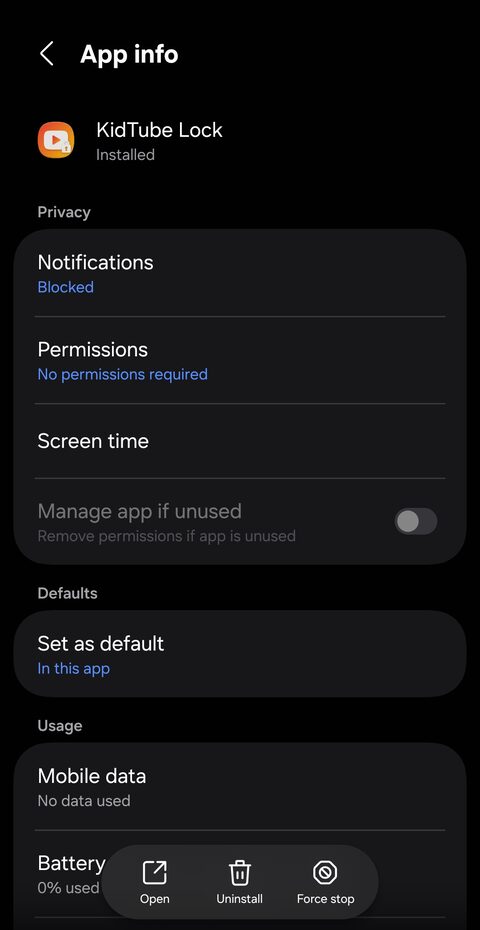
On the App info screen, scroll down past Privacy and Defaults.
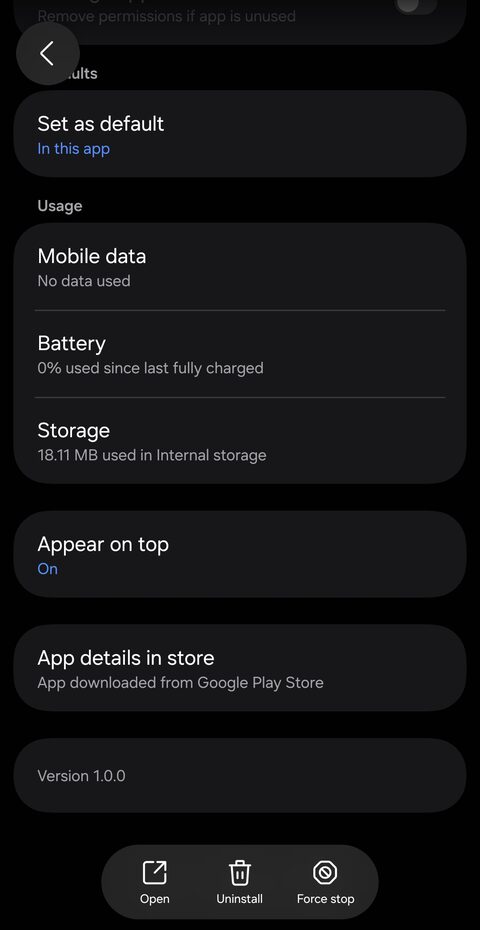
Tap Appear on top and switch it On.
Part 2 of 2
Turn on KidTube Lock Guardian
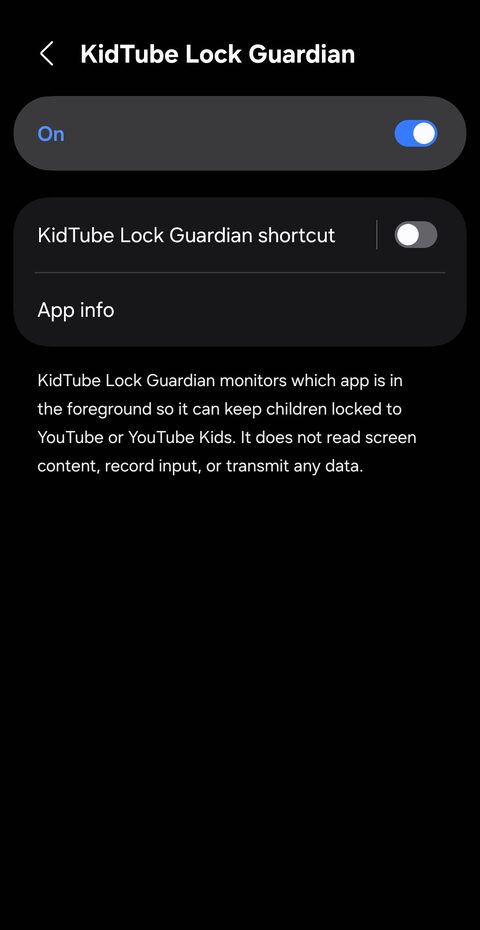
Guardian is the accessibility option that notices if your child somehow leaves YouTube, and gently brings them right back.
Back in Settings, tap Accessibility.
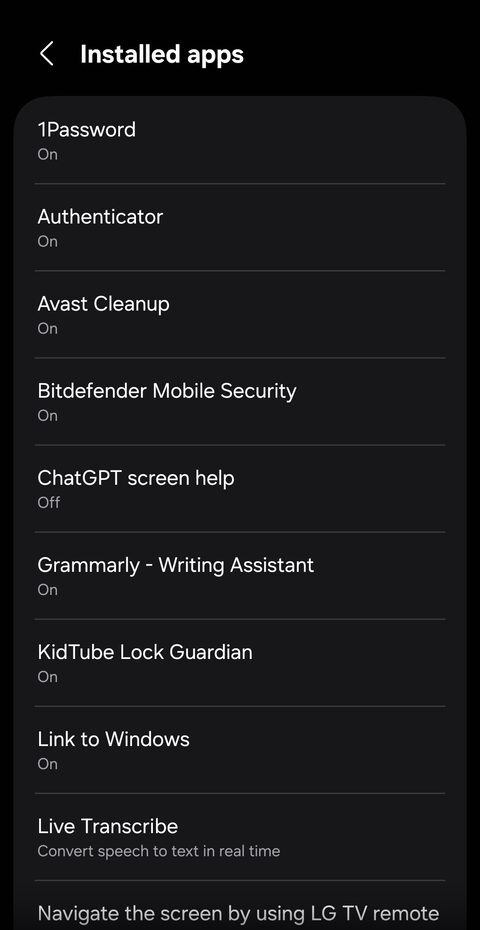
Tap Installed apps near the bottom.
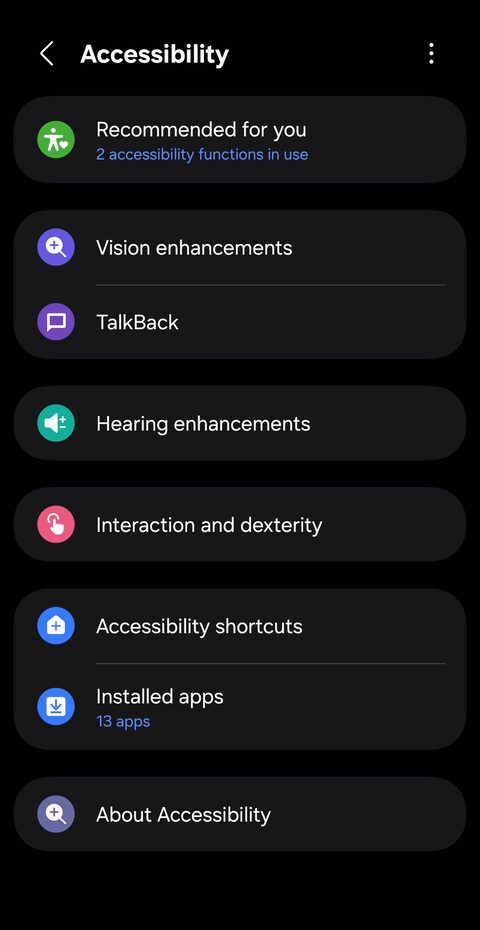
Tap KidTube Lock Guardian in the list.
Switch it On and confirm. That's the last step.
You're all set
Open KidTube Lock, choose YouTube or YouTube Kids, set your time limit and secret unlock taps, then tap Lock Screen and hand the phone over.